How to connect a Samsung Jet Bot Combo to SmartThings
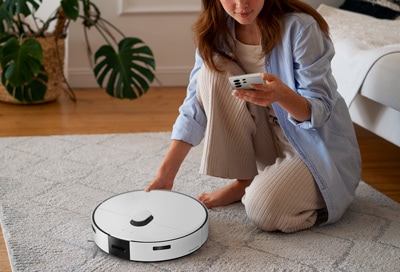
To connect your Samsung Jet Bot Combo to the SmartThings app, ensure your device is powered on and within range of your Wi-Fi network. Follow the step-by-step registration process in the SmartThings app to enable smart cleaning features.
1. How to Connect Your Samsung Jet Bot Combo to SmartThings
- Open the SmartThings app on your smartphone.
- Tap the Add button (plus sign icon) and select Add device.
- Under Samsung devices, tap Robot cleaner.
- Scan the QR code located on your Jet Bot Combo using your phone's camera. If scanning fails, tap Add without QR code, select your Jet Bot Combo model, and wait for the device to connect.
- Follow the on-screen prompts to complete the pairing process.
- Assign a location, room, and custom name to your Jet Bot Combo, then tap Done.
2. Why Your Jet Bot Combo Might Not Connect to SmartThings
- The device is not powered on or is in sleep mode. Ensure the Jet Bot Combo is fully charged and turned on before attempting to connect.
- The Wi-Fi network is unstable or the device is out of range. Move closer to your router and ensure your phone and Jet Bot Combo are connected to the same 2.4 GHz network.
- The QR code is damaged or obscured. Clean the QR code area on your Jet Bot Combo and try scanning again.
- The SmartThings app needs an update. Check for app updates in your device's app store.
3. Supported Samsung Jet Bot Combo Models
This guide applies to the following Samsung Jet Bot Combo models:
Jet Bot Combo AI+, Jet Bot Combo Advanced, Jet Bot Combo Pro
4. Additional Things to Check
If your Jet Bot Combo still won't connect:
- Restart both your phone and the Jet Bot Combo.
- Forget the Wi-Fi network on your Jet Bot Combo and reconfigure it using the SmartThings app.
- Ensure your phone's Bluetooth is enabled during the setup process.
5. Related Samsung Support Topics
Thank you for your feedback!
Please answer all questions.