Protect your Samsung Galaxy device with the Auto Blocker feature
- Starting with One UI 6.1.1, security features have been added, including Maximum restrictions.
- Menu names, settings, and screen layouts may vary depending on the model and software version.
Check or enable Auto Blocker
For the best protection, we recommend keeping Auto Blocker enabled on your Samsung Galaxy device. While it should already be enabled or offered during the initial setup on many Galaxy devices, you can check its current status at any time in the Settings menu.
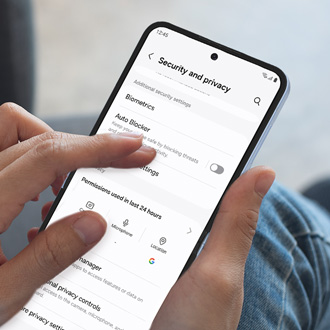
- Open the Settings menu. Then, scroll through and select Security and privacy.
- Tap Auto Blocker.

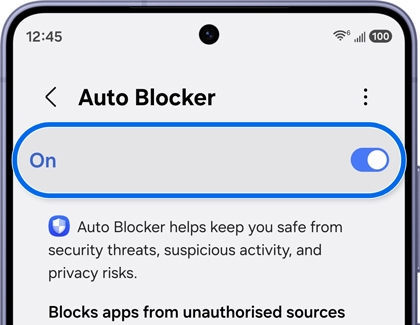
- Tap the switch to turn on Auto Blocker if it is turned off.

- When Auto Blocker is enabled, your device automatically uses the following security tools:
- Blocks apps from unauthorized sources: Helps prevent apps from being installed from unknown or untrusted sources. If you try to install an app from outside the Galaxy Store or Google Play Store, Auto Blocker will notify you and stop the installation.
- Blocks commands by USB cable: Helps protect your device when it is connected to a charger, computer, or other USB device by blocking unauthorized commands that could access or modify your device.
- Blocks malware images in messaging apps: Helps protect your device by blocking images that are suspected of containing malicious code before they can be opened.
- Block non-official software updates: Helps prevent software that has not been certified by Samsung from being installed on your device, reducing the risk of unauthorized or modified system software.
Use the Maximum restrictions feature
Maximum restrictions is intended for users who prefer stronger security, even if it means giving up some convenience. While it helps reduce the risk of certain security threats, it may also prevent some accessories, apps, or connections from working as expected. If you primarily use your Galaxy device for everyday tasks and install apps only from trusted sources, the standard Auto Blocker settings are sufficient for most users.
How to activate the Maximum restrictions feature
- Open the Settings menu. Then, scroll through and select Security and privacy.
- Tap Auto Blocker.
- Tap the switch to turn on Auto Blocker if it is turned off.
- Tap Maximum restrictions at the bottom of the screen.

- Tap the switch at the top of the screen to turn on Maximum restrictions.

- When enabled, your device will automatically use the following security tools:
- Turns on App protection: Automatically scans apps on your device for viruses and spyware to help detect potentially harmful software.
- Blocks device admin apps: Prevents device administrator apps and work profiles from being activated. This helps protect your personal data from apps that could gain elevated access to your device.
- Blocks 2G networks: Prevents your device from connecting to older 2G mobile networks, which are less secure than modern cellular networks. However, if you are in an area where only a 2G network is available, you will not be able to make phone calls, send text messages or use mobile data.
- Blocks auto reconnection to non-secure Wi-Fi networks: Prevents your device from automatically reconnecting to non-secure Wi-Fi networks that you have previously joined, helping reduce the risk of connecting to an unsafe network.
- Blocks hyperlinks and previews: Prevents hyperlinks and preview images from appearing in text messages that contain web addresses. This helps protect you from accidentally opening links to malicious websites. If you trust the sender, you can manually enter or copy and paste the web address into your browser.
- Blocks shared albums: Prevents you from creating or joining shared albums in the Gallery app. This helps protect your privacy by reducing the risk of receiving unwanted invitations or accidentally sharing photos that may contain sensitive information.
- Removes location data when sharing pictures: Removes location information from photos before they are shared from the Gallery app, helping prevent recipients from seeing where the pictures were taken.
Understand the limitations of Auto Blocker
Auto Blocker is designed to protect your device without affecting everyday use. However, some actions require fewer security restrictions and may not work while Auto Blocker or Maximum restrictions is enabled. Understanding these limitations can help you make informed decisions about your device's security settings.
Auto Blocker
- Installing apps from outside trusted app stores: Auto Blocker prevents apps downloaded from websites or other sources from being installed. If you choose to install apps from outside the Galaxy Store or Google Play Store, Auto Blocker will prevent the installation unless the feature is turned off.
- Installing unofficial software updates: Auto Blocker blocks system software that has not been certified by Samsung. Official software updates installed through your device settings or Smart Switch are not affected.
Maximum restrictions
- Some work or enterprise apps may not function: Apps that require device administrator permissions or a work profile cannot be activated while Maximum restrictions is enabled.
- Older 2G mobile networks are blocked: If you travel to an area where only a 2G network is available, you won't be able to make phone calls, send text messages, or use mobile data while Maximum restrictions is enabled.
- Some messaging features are limited: Hyperlink previews and preview images are blocked. If you receive a web address from someone you trust, you'll need to manually enter or copy and paste it into your browser.
- Some Gallery features are unavailable: Shared albums cannot be created or joined while Maximum restrictions is enabled. In addition, location information is automatically removed from pictures before they are shared.
Frequently asked questions about blocking app installs
A pop-up appears when I try to install the downloaded APK file, and it says that it can't install the app.
The Auto Blocker feature automatically blocks files downloaded from sources other than authorized stores, such as Galaxy Store or Play Store. If the app is determined to be safe, temporarily disable this feature and try again.
Apps that I installed and used well on my previous device are not installed on my newly purchased device.
The Auto Blocker feature automatically blocks files downloaded from sources other than authorized stores. For Galaxy devices released with One UI 6.1.1, the Auto Blocker feature is set to On by default. If the app is determined to be safe, temporarily disable this feature and try again.
Apps I downloaded are not updating.
If the Auto Blocker feature is turned off and the app was downloaded from a source other than an authorized store, it cannot be updated while the Auto Blocker feature is on. If the app is determined to be safe, temporarily disable this feature and try again.
Work apps or apps in a work profile aren’t installing or updating.
The Auto Blocker feature automatically blocks files downloaded from sources other than authorized stores. If the app is determined to be safe, temporarily disable this feature and try again.