Lost in Translation?
Learn How to Translate
a Browser on Web and Mobile


Android Phone
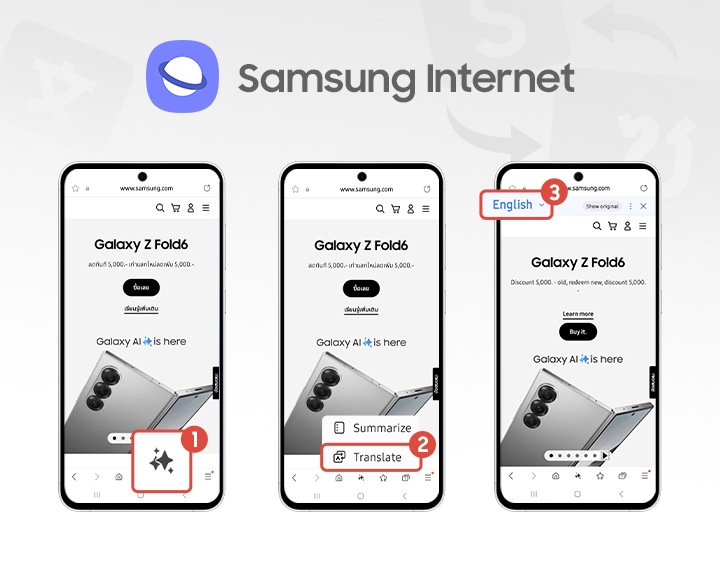
Translate on your Mobile Samsung Internet
Open Samsung Internet
1. Click on the AI Icon
2. Click on Translate
3. Select your language
Then you will be able to see the page is translated.

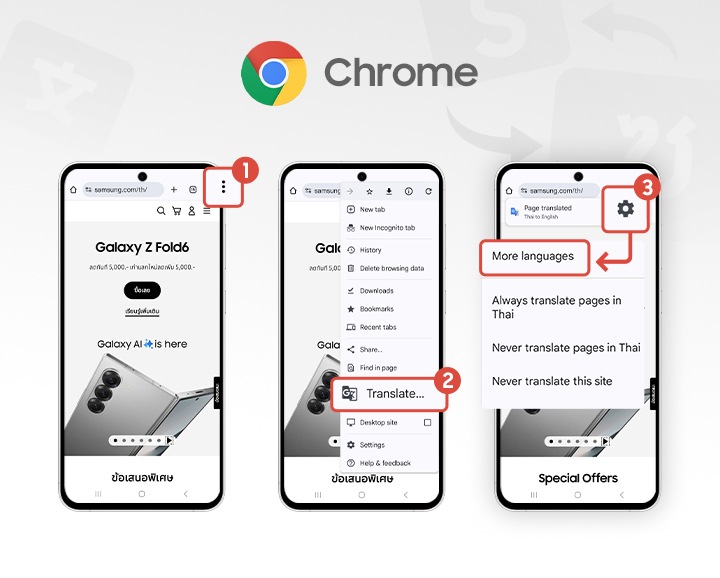
Translate on your Mobile Google Chrome
Open Google Chrome
1. At the top right, click 3 Dot
2. Choose Translate
3. Click on the setting Icon and select more Language by Selecting your Languages.

IOS Phone
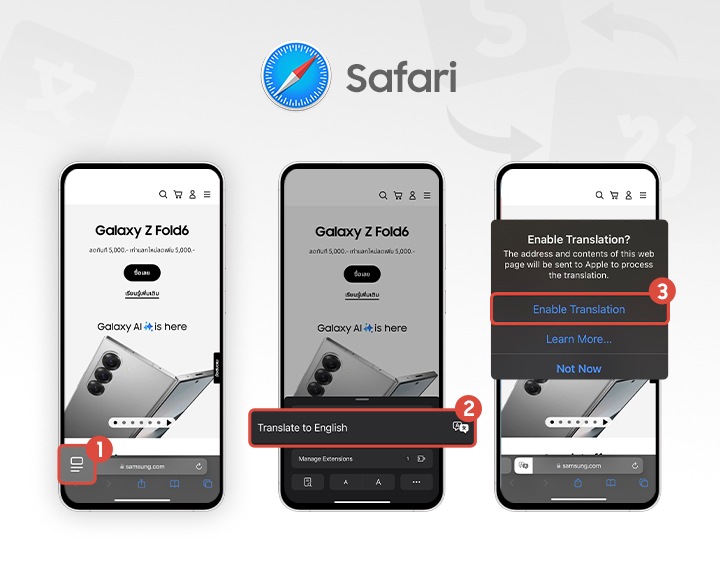
Translate on your Mobile Safari
Open Safari
1. Click on the Address Icon
2. Click Translate to English
3. Enable Translation in the prompt if required

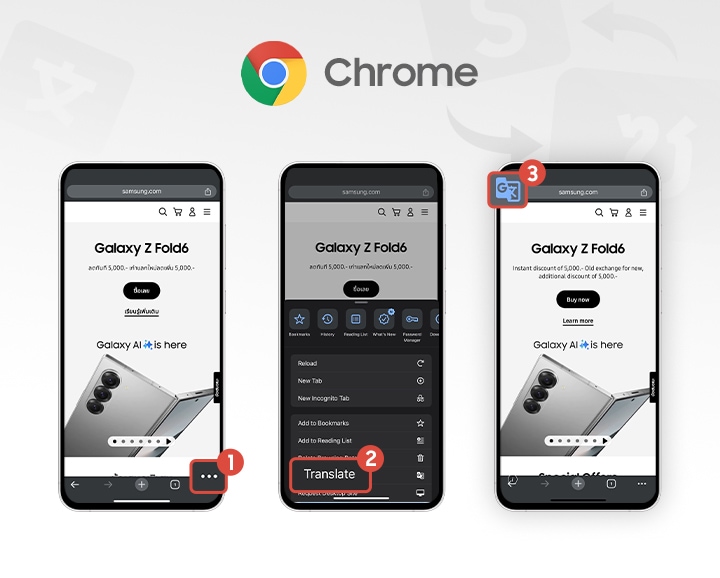
Translate on your IOS Chrome
Open Google Chrome
1. Tap the three dots at the bottom right.
2. Click Translate
3. Translated but if you want to search for other languages, Click on the language setting on the address bar

Computer
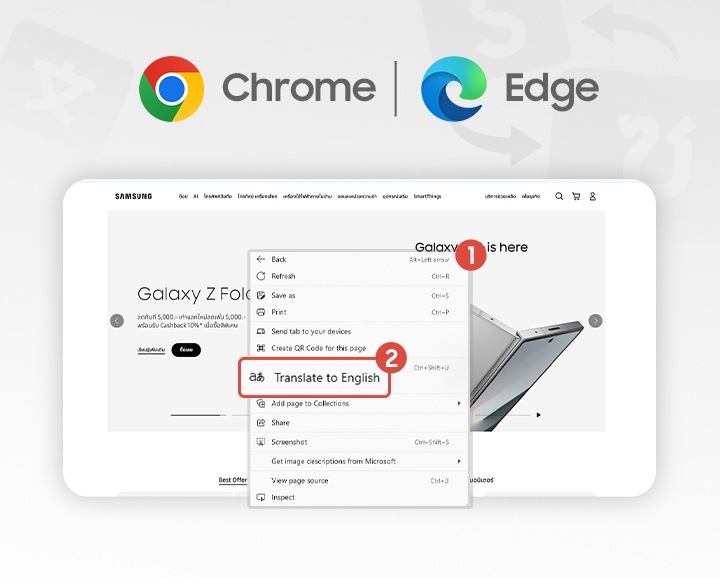
Translate on Web Google Chrome and Microsoft Edge
Open Google Chrome Browser or Microsoft Edge
1. Right click mouse anywhere on the webpage
2. Choose Translate to English

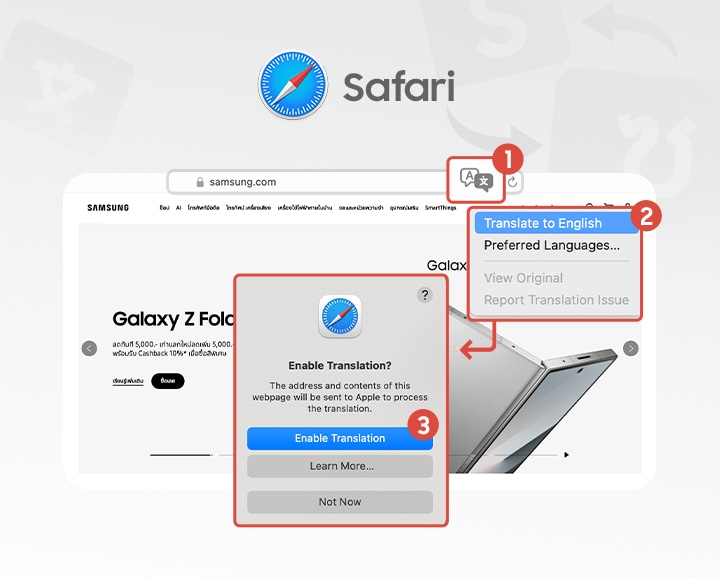
Translate on your Web Safari
Open Safari
1. Click on the Language bar beside the address link
2. Click Translate to English
3. Enable Translation in the prompt if required

Product Registration
Quick and easy product registration..
Receive up-to-date personalized services and tips.
Enter your Serial Number/IMEI
Quick and easy product registration.

Product registration is almost complete!!
You've entered a valid S/N or IMEI. Now select the model of your product.
Galaxy Book3 Ultra
SM-G996BZKGEUA
Serial Number: R3CR508WNAH
The device you are currently using does not support the camera function.
Please try again with a different device.