Fix “No SIM Card Detected” on Samsung Galaxy
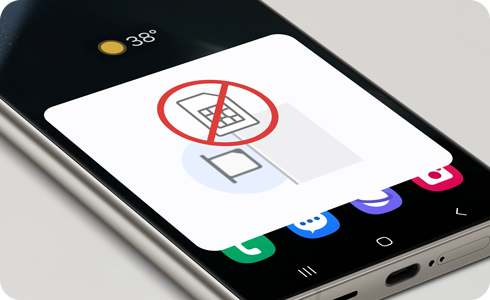
Why does my Samsung Galaxy show "No SIM Card Detected"?
If your Samsung Galaxy device displays a "No SIM Card Detected" error despite having a SIM card installed, the issue could stem from software glitches, physical damage, or incorrect network settings. Follow these steps to diagnose and resolve the problem effectively.
1. Why does the "No SIM Card Detected" error occur?
This error typically occurs due to:
- Software glitches after recent updates or app installations
- Physical damage to the SIM card or tray
- Loose or improperly seated SIM card
- Corrupted mobile network settings
- Incompatible or damaged SIM card
2. How to fix the "No SIM Card Detected" error on Samsung Galaxy devices
2.1 Restart your phone
Restarting your device can often resolve temporary software glitches causing the error.
- Press and hold the Power button for 10 seconds until the power menu appears.
- Tap Power off and wait for your phone to shut down completely.
- Press the Power button again to turn your phone back on.
- Check if the error persists.
2.2 Inspect the SIM card and tray
Physical issues with the SIM card or tray can prevent proper detection.
- Press and hold the Volume down and Power buttons simultaneously until the power menu appears.
- Tap Power off to turn off your phone.
- Remove the SIM card tray using the provided eject tool or a paperclip.
- Inspect the SIM card and tray for visible damage such as scratches, bends, or moisture.
- Clean the SIM card and tray gently with a soft, dry cloth.
- Reinsert the SIM card into the tray, ensuring proper alignment.
- Secure the tray back into your phone and turn it on.
- Check if the error is resolved.
Note: Handle the SIM card tray carefully to avoid bending or breaking it.
2.3 Reset mobile network settings
Resetting network settings can resolve issues caused by corrupted configurations.
- Go to Settings > General management > Reset > Reset network settings.
- Confirm the reset by tapping Reset settings.
- Enter your PIN, password, or pattern if prompted.
- Wait for your phone to complete the reset process.
- Reconnect to your Wi-Fi network and check if the SIM card is now detected.
Note: Resetting network settings will erase saved Wi-Fi passwords, Bluetooth pairings, and mobile network configurations. This action cannot be undone.
3. Additional things to check
If the issue persists, try these steps:
- Insert the SIM card into another compatible phone to verify its functionality. If the SIM card isn't detected in another device, it may be damaged or deactivated.
- Ensure the SIM card is compatible with your Samsung Galaxy device. Some older SIM cards may require replacement for newer models like the Galaxy S24 or Galaxy Z Fold series.
- Update your phone's software to the latest version via Settings > Software update > Download and install.
4. Supported Samsung Galaxy devices
This troubleshooting guide applies to most Samsung Galaxy devices, including:
Galaxy S24, Galaxy S25, Galaxy S26, Galaxy Z Fold, Galaxy Z Flip, and Galaxy A series.
5. When updates may not appear
Software updates may not appear if:
- Your device is connected to an unstable Wi-Fi network.
- The device storage is nearly full, preventing download installation.
- The device is operating in Safe Mode, which restricts background processes.
Related Samsung support topics
Thank you for your feedback!
Please answer all questions.