Customize Wearable Notifications on Galaxy Phone/Watch
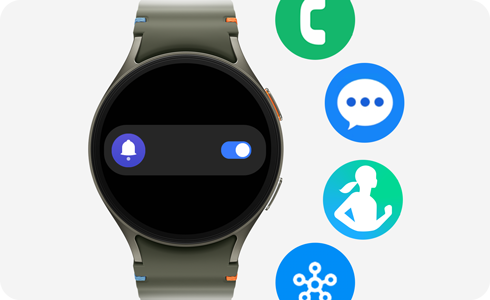
How to Customize Notifications on Samsung Galaxy Watch Using Your Phone or Watch
To customize notifications on your Samsung Galaxy Watch, you can use your paired Galaxy phone or the Watch itself to control which apps send alerts, adjust notification behaviors, and ensure you only receive important updates. This guide covers setup, advanced options, and troubleshooting tips for seamless notification management.
1. How to Pair Your Galaxy Phone and Watch
Before customizing notifications, ensure your Galaxy phone and Watch are paired:
- Open the Galaxy Wearable app on your phone.
- Follow on-screen instructions to pair your Galaxy Watch.
- Once connected, notifications from your phone will sync to your Watch.
2. How to Enable or Disable App Notifications on Your Galaxy Watch
Select which apps can send notifications to your Galaxy Watch:
- Open the Galaxy Wearable app on your phone.
- Tap Notifications.
- Choose App Notifications to toggle specific apps on or off.
3. How to Adjust Advanced Notification Settings
Enhance your notification experience with these advanced options:
- New Notification Indicator on Watch Face: Displays a badge when you receive a notification.
- Read Notifications Aloud: Bixby reads notifications aloud when audio devices are connected and enabled.
- Show with Details: Automatically displays full notification content on your Watch.
- Turn on Screen: Activates the Watch screen for incoming notifications unless Mute is enabled.
- Auto Turn On Watch Notifications for New Phone Apps: Syncs notifications for newly installed apps. Enable manually in settings.
4. Why Do I Need to Customize Notifications?
Customizing notifications helps you:
- Reduce distractions by filtering irrelevant alerts.
- Stay informed with critical updates only.
- Improve battery life by minimizing unnecessary screen activations.
5. Supported Samsung Galaxy Devices
These features are compatible with:
- Galaxy Watch series (including Galaxy Watch6, Watch5, and newer models).
- Galaxy phones running One UI 4.0 or later (Galaxy S21, S22, S23, S24, Z Fold, Z Flip, A series).
6. What If Notifications Don't Appear on My Galaxy Watch?
If notifications aren't syncing, check:
- Ensure your phone and Watch are paired and connected.
- Verify notification permissions in your phone's app settings.
- Restart both devices and re-pair if necessary.
Related Samsung Support Topics
Thank you for your feedback!
Please answer all questions.